Frontend engineering: ESLint + Prettier
Preface
For a frontend project, if you are a one-person team handling all the code yourself, then honestly you can write it however you want — as long as the program runs. But for a team that collaborates with multiple people, or even with outsourced contributors, if you don’t set basic frontend conventions beforehand, then in the mild case people won’t know where to import a component from or where to find the function they need; in the severe case the code becomes hard to read, leading to a situation where the code can only be maintained and modified by the engineer who originally wrote it (commonly known as Legacy Code).
Establishing clear code conventions at the very beginning of a project not only guarantees a baseline of readability and makes maintenance easier, but it also reduces some of the disputes that come up during code review (harmony in the team is the most important thing, right?).
The most basic frontend conventions are setting up Eslint and Prettier — one is a code-quality checker, the other is a code formatter.
Basic ESLint and Prettier setup
Installing dependencies
When using Eslint and Prettier together, some of the settings around “code quality” and “code formatting” will conflict. As shown below:
 (image from logrocket)
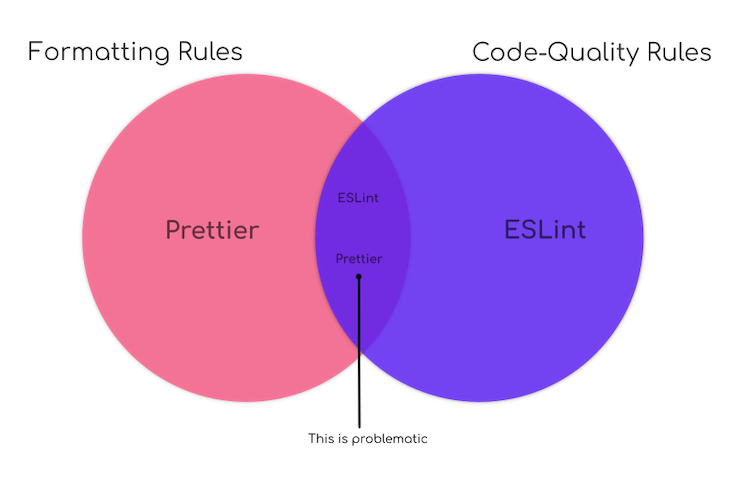
So we need to resolve this conflict first. The required npm dependencies are eslint, eslint-plugin-prettier, eslint-config-prettier, and prettier.
npm i -D eslint eslint-plugin-prettier eslint-config-prettier prettier
The role of each dependency is shown in the table below:
| Dependency | Purpose |
|---|---|
| eslint | The ESLint core library |
| eslint-plugin-prettier | Adds Prettier’s rules into ESLint as a plugin |
| eslint-config-prettier | Disables all ESLint rules that conflict with Prettier |
| prettier | The Prettier core library |
ESLint and Prettier configuration
After installation, add .eslintrc.js to the project root (you could also use .eslintrc.json, but JSON files cannot have comments, so I prefer .js). Then, following the official recommendation from eslint-plugin-prettier, write the following in .eslintrc.js:
module.exports = {
  // If you have other extends, remember to put prettier last
  "extends": ["plugin:prettier/recommended"]
  "plugins": ["prettier"],
  "rules": {
    "prettier/prettier": "error"
  }
}
Later, if you want to add Prettier rules (e.g. tab=4space), you can write them under the prettier option in "rules":
	"prettier/prettier":[
		"error",
		{
			tabWidth: 4,
		}
	]
Or, simply add a .prettierrc file in the project root and put the rules there.
Bonus: other configuration items in .eslintrc.js
module.exports = {
    env: {},
    extends: [],
    overrides: [],
    parser: '',
    parserOptions:{},
    plugins: [],
    rules: {},
    settings: {},
}
- env: Defines the environment, telling ESLint which environment variables are available. The full documentation is on the official site. Common ones are:
- browser — browser global variables, such as window
- node — NodeJS global variables
- es6 — ECMAScript 6 features
- jest — Jest global variables
- extends: Checks specified file types according to the specified rule sets, e.g. checking ts code with
@typescript-eslint/recommended. Items in extends can be thought of as “importing someone else’s already-configured.eslintrc.js”.- If rules conflict, the later ones override the earlier ones. That’s why the official guide recommends putting
prettierlast.
- If rules conflict, the later ones override the earlier ones. That’s why the official guide recommends putting
- plugins: To use third-party plugins in ESLint you have to install them via npm first; you can think of it as “loading the plugin”, but it only takes effect after being defined in
extendsandrules. rules: The rules being applied.
Suppose you’ve installed
@typescript-eslint/eslint-pluginvia npm — how should extend, plugin, and rule be configured?{ "plugins": [ "@typescript-eslint" // plugin declaration ], "extends": [ "eslint:recommended", "plugin:@typescript-eslint/recommended" // refers to a category of config objects within the plugin ], "rules": { "@typescript-eslint/rule-name": "error" // applies a specific rule from the @typescript-eslint plugin } }
overrides: Lets a group of files (usually based on a filename naming pattern) be excluded from rules, or be checked with a different rule set.
Disable a particular rule for xxx.test.js files:
"rules": {...},
"overrides": [
{
  "files": ["*-test.js","*.spec.js"],
  "rules": {
    "no-unused-expressions": "off"
  }
}
]
parser: ESLint inspects code, and the parser’s job is to convert code into an ESTree, which ESLint then walks and validates.
parserOptions: Supplements the parser. For example, the default ESLint doesn’t support every latest ES6 syntax, so if needed you can add
{ "parserOptions": { "ecmaVersion": 6 } }.Settings for ESLint to parse TypeScript:
parser: '@typescript-eslint/parser',
parserOptions: {
    ecmaVersion: 'latest',
    sourceType: 'module',
},
settings: A current use case is when a project uses
webpack.config.jsortsconfig.jsonto set up alias imports (ex:import xxx from "@/components/xxx"), causing ESLint to throw errors. In that situation you can use settings to solve theUnable to resolve path to moduleproblem.When using
webpack.config.jsto set up path aliases, first installeslint-import-resolver-webpackvia npm, then update settings in.eslintrc.js:"settings": { "import/resolver": { "webpack":{ "config":"webpack.config.js" } } }
VS Code settings
Assuming everyone in your project team uses VS Code as the IDE, you can configure VS Code to automatically fix ESLint and Prettier errors on every save:
- Add a folder named
.vscodeat the project root - Add a
settings.jsoninside that folder Write the following JSON:
{
"editor.codeActionsOnSave": {
  "source.fixAll.eslint": true
},
"eslint.alwaysShowStatus": true,
"editor.defaultFormatter": "esbenp.prettier-vscode",
"[javascript]": { "editor.defaultFormatter": "esbenp.prettier-vscode" },
"editor.formatOnSave": true
}
(The line "[javascript]": { "editor.defaultFormatter": "esbenp.prettier-vscode" } is so that ESLint can format some JS files in the project root, like webpack.config.js, etc.)
Conclusion
Basically, the ESLint+Prettier setup is done — the rest comes down to team consensus.
In the next post, we will look at what additional setup is needed in a Vue/React + Typescript project.
ChangeLog
- 20220911 - added conclusion
- 20220901 - init
- 20260501–translate by claude code